Mittwoch, 30. März 2011

Crysis 2 Screenshots

Well, i have to admit, I did not take these Screenshots on Ubuntu. But gaming is the only reason why I still have Windows 7 installed on my Desktop PC. And because of the fact that i just bought the game I felt like sharing a few pics with you.
My PC's Specs are:
  • Intel Core 2 Dou E8400 3.00GHz OC@3.73GHz
  • nVidia 250GTS 1GBVRAM
  • 4GB PC2-6400-DDR2-RAM
  • on a MSI P43 Neo-F Motherboard
Not really the latest equipment, but i think the graphics are still awesome and I can play the game with a reasonable framerate on my 1920*1200 26'' Monitor.


I love the graffiti pieces in Crysis 2!

Gaming on Linux?

The first question I hear when talking about Ubuntu is:

Will I be able to play my games on Linux?

And the clear answer is yes and no. Yes because of the fact, that there are some games which run on Linux natively, but I have to admit that these are few.
You will be able to play Bejeweled on Linux!
(Maybe the "project bossanova" will change things)

Flash games work on Linux, as long as Flash works ;)

The interesting part about gaming on Linux is:
You will be able to play Windows games!

There is a tool called wine, which allows you to run (most) Windows applications on LInux. I'll show you how to configure it to be able to play certain games some time soon, because not being able to play your favourite game, is what keeps most Windows users sticking to Windows.

In order to demonstrate, how easy playing Windows games on Linux can be, I made a short video in which i run Warcraft III in Linux Ubuntu.


But keep in mind, that most modern games won't run on Linux just like that!

Spielen unter Linux

Das erste, was ich gefragt werde, wenn ich jemandem empfehle Ubuntu zu installieren ist meistens:

Kann ich mit Linux denn auch meine ganzen Games spielen?

Bejeweled  läuft auch mit Linux!
Die klare Antwort ist Jein. Es gibt natürlich Spiele die auch, oder sogar exklusiv für Linux entwickelt werden. Doch machen wir uns nichts vor, gute Linux-Spiele sind rar gesät.
(Vielleicht bringt das "project bossanova" ja ein bisschen Schwung in den Linux-Spiele-Sektor)


Flash-Games laufen unter Linux, sofern Flash funktioniert ;)

Jetzt aber zu dem interessanten Teil: Windows Spiele funktionieren unter Linux!

Wieso ich mich traue, das zu sagen? Weil ich noch (fast) jedes Spiel mit wine auf Ubuntu zum Laufen kriegen konnte. Und darauf möchte ich in nächster Zeit gerne etwas öfter eingehen, weil wenn ich mich so umhöre, ist die Angst davor, sein Lieblingsspiel nicht mehr spielen zu können, das häufigste Argument gegen Ubuntu.

Und um zu zeigen, wie einfach Windows Spiele manchmal auf Linux laufen, hier ein kleines Video indem ich Warcraft III mittels wine auf Ubuntu starte.

Das ist aber doch eher eine Seltenheit, dass das so einfach klappt. Die meisten modernen Spiele kriegt man nur unter Umständen zum Laufen.

Montag, 28. März 2011

Firefox 4 ganz einfach in Ubuntu installieren


If you are not from Germany, you may be interested in the english version of this tutorial.


Öffne ein Terminal deiner Wahl, kopiere den gesamten nachfolgenden Code:


sudo add-apt-repository ppa:mozillateam/firefox-stable && sudo apt-get update && sudo apt-get upgrade

füg ihn ins Terminal ein und drück Enter! Dieses kleine Code-Schnippselchen wird deinen Firefox in Ubuntu auf die aktuelle Version 4 upgraden.


Wie genau das geht, seht ihr hier

sudo = super user do: sagt Ubuntu, dass der nächste Befehl mit Administrator-Rechten ausgeführt werden soll.

add-apt-repository ppa:mozillateam/firefox-stable = Fügt das Firefox/Stable PPA des Mozillateams deiner sources.list hinzu

&& = Bedeutet das noch ein Befehl augeführt werden soll, wenn der vorhergehende erfolgreich war.

apt-get update = Lässt Ubuntu die Paketquellen abfragen und auffrischen

apt-get upgrade = Dadurch werden alle installierten Programme aktualisiert

A fast and easy way to install Firefox 4 in Ubuntu

Just open up a terminal, copy and paste the whole code

sudo add-apt-repository ppa:mozillateam/firefox-stable && sudo apt-get update && sudo apt-get upgrade

and hit Enter! That's it, your firefox will now be upgraded to version 4.


Explanation of the commands:

sudo = super user do: tells Ubuntu to run the following command with root privileges.

add-apt-repository ppa:mozillateam/firefox-stable = add the mozillateams stable firefox PPA to your sources.list

&& = Tells the Ubuntu to execute another command if the foregoing command was executed successfully

apt-get update = tells Ubuntu to update your sources.list

apt-get upgrade = tells Ubuntu to upgrade all installed applications

Sonntag, 27. März 2011

How to set up a squid proxy in Ubuntu

This works, so here is the tutorial I promised in the comments.
In order to turn your Ubuntu PC into a proxy server, you have got to install squid at first:
sudo apt-get install squid
squid will not work out of the box, so we've got to do some changes to the config file at /etc/squid/squid.conf
sudo gedit /etc/squid/squid.conf
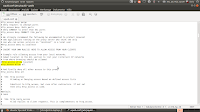
In order to change the name of your proxy insert the line visible_hostname *yourname* at the top.

My school blocks all ports but port 80 so I have to change squids port to 80.
You can do that by locating the line containing http_port 3128 (line 1114 in Ubuntu 10.10 with squid 2.7.STABLE9) and change it to http_port 80

To allow other computers to access your squid server, you will have to find the line containing http_access allow localhost and change it to http_access allow all (line 677)

Now tell squid to apply the changes with
sudo squid -k reconfigure
Congrats, your proxy is now set up!

port forwarding with my router
If you want to access your proxy from the internet, you will have to forward port 80 from your router to port 80 on your PC. You can find a guide for your router here.

If your IP-adress is dynamic you will have to set up dyndns (or a similair service) to guarantee your proxy server is always accessible.
I'll show you how to do that in an upcoming post!

Ubuntu als Proxy Server mit squid // Internetzensur an Schulen umgehen

Kennt ihr das?
Ihr seid in der Schule/Uni/Arbeit/woauchimmeraußerhaltzuhause und wollt schnell mal die Seite XY (z.B. gulli.com) checken. Und dann taucht sie auf, die Zensurseite.

"Der Zugriff auf die Seite http://www.gulli.com mit folgender Begründung verweigert:

Extremist Content, Illegal or Unethical, Verbreitung von Weltübernahmemodellen, etc

Bei Fragen oder Beschwerden wenden Sie sich bitte an zensor@Schule/Uni/Arbeitgeber.de"

Weil das an unserer Schule wirklich sehr exzessiv praktiziert wird, wollte ich mal probieren, ob ich meinen Ubuntu-PC nicht als Proxy einrichten kann, um diese Sperre so zu umgehen.

Nach ein bisschen googlen bin ich dann auf squid und polipo gestoßen, habe mich aber für squid entschieden, weil die Wikipedia-Seite zu squid länger ist und ich das Tintenfisch-Maskottchen cool finde (no shit).

Es hat geklappt!!

Siehe Screenshot vom Remote-PC mit Windows 7 und Firefox:
Wenn das morgen wirklich die Zensurmaßnahmen der Schule aushebelt, dann poste ich mein Tutorial dazu :)
Das Setup zum Screenshot